Real-time control
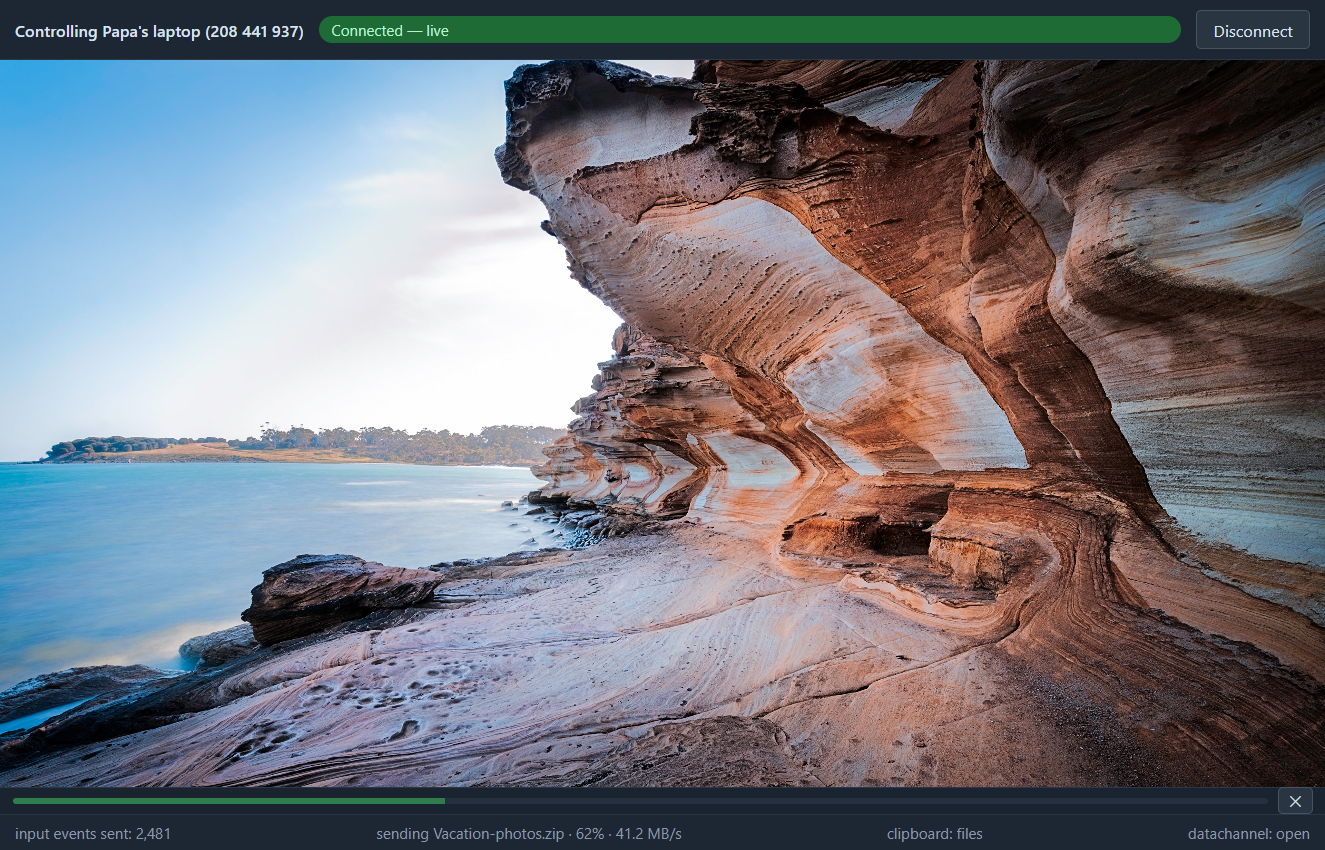
The picture stays smooth and the mouse feels direct, so dragging a window across the screen is not a slideshow.
100% free · Windows 10/11 · No account needed
See and control any Windows PC from anywhere. Unlimited sessions, file transfer up to 2 GB, clipboard sync and unattended access — with no subscription, no account and no "trial expired" pop-up. Ever.
A look inside
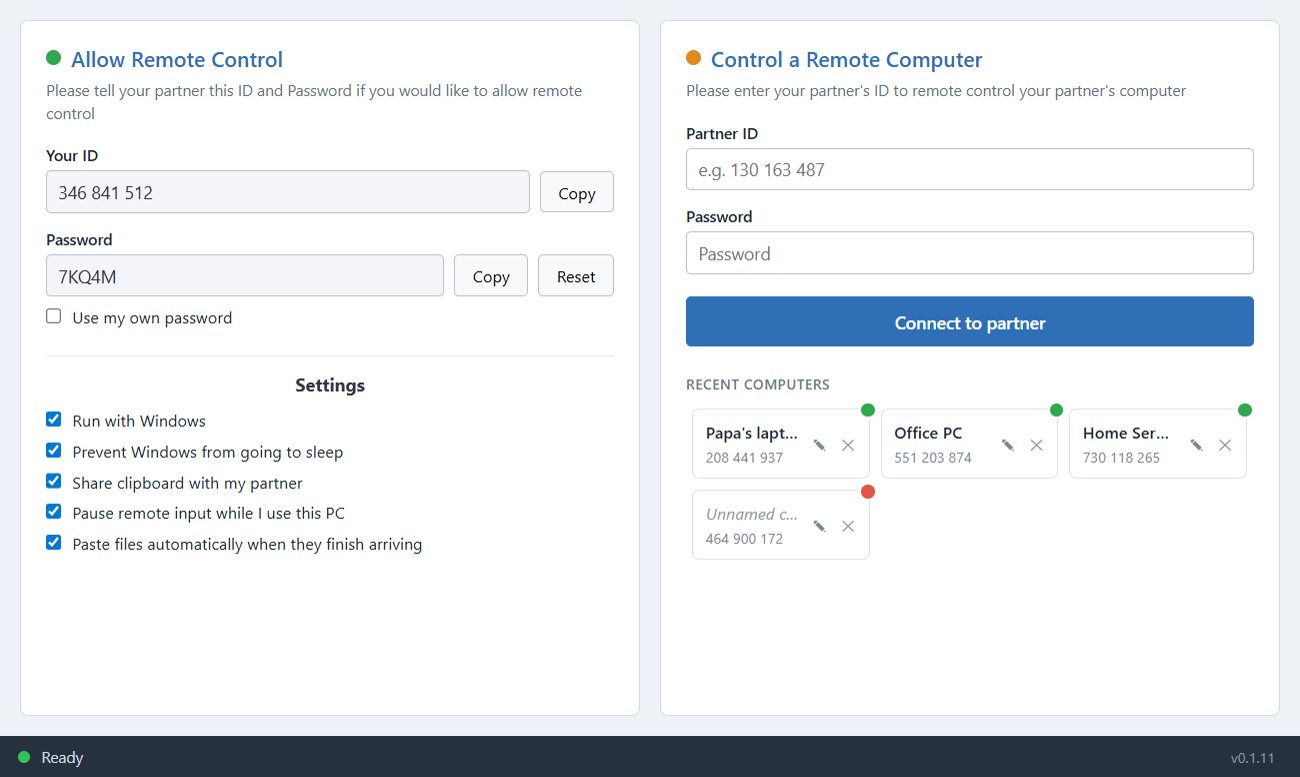
Two panels, like the tools you already know. Share your ID and password, or type your partner's to take control.
Features
Included in the free installer. No tiers, no feature gates, no licence key.
The picture stays smooth and the mouse feels direct, so dragging a window across the screen is not a slideshow.
Your screen and your keystrokes stay encrypted the whole way, and the picture goes straight from one PC to the other.
Copy a file and paste it on the other machine. Progress, speed and size in a thin strip — with a cancel button when you change your mind.
Text, images and copied files sync in both directions while a session is open. Paste deliberately — nothing uploads until you press Ctrl+V.
Start with Windows, keep the PC awake, and set your own password so you can reach a home or office machine with nobody sitting at it.
A fresh password is generated after every session, so yesterday's shared code cannot be reused tomorrow.
Save the machines you help often, give them names like "Papa's laptop", and see a green dot when they are online right now.
If you touch your own keyboard or mouse, injected input pauses by itself — no fight over the cursor.
A quiet check after launch and every few hours. The version in the status bar turns green when a new build is ready.
How it works
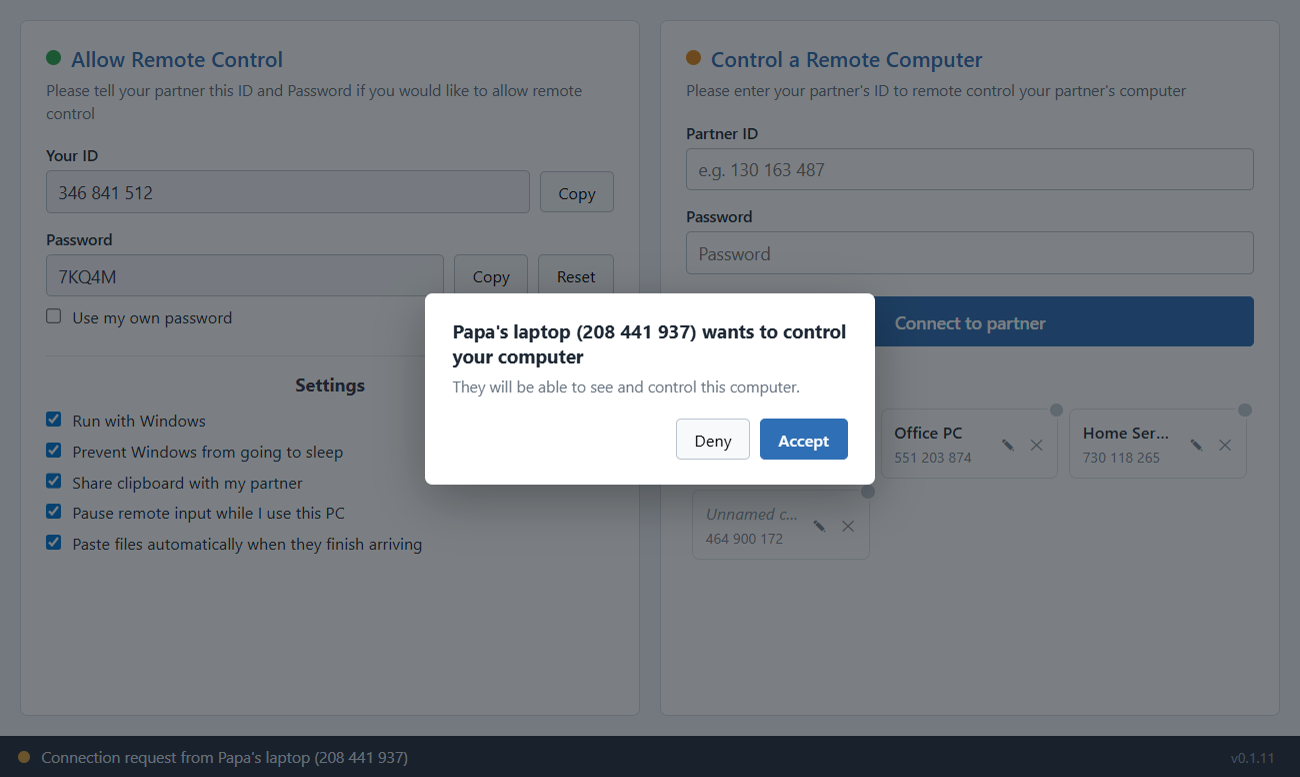
Both computers run the app. Nothing else to install, no router settings to change.
Your ID and one-time password appear in the left panel, with a Copy button next to each.
They enter the nine-digit ID and password under "Control a Remote Computer" and press Connect.
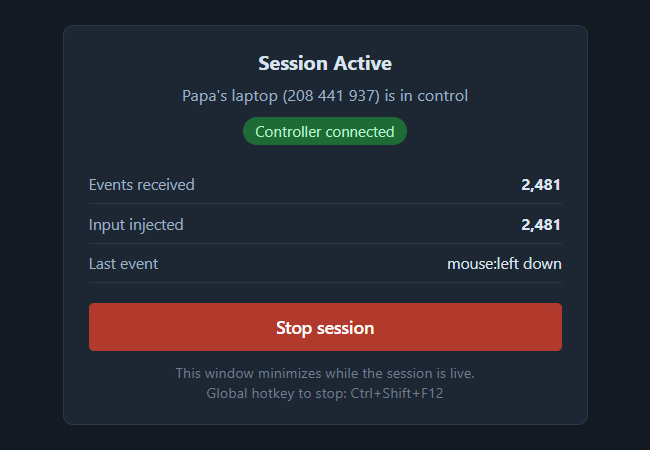
The screen goes live. Copy-paste, drag a file, or stop everything with the Stop button or Ctrl+Shift+F12.
No catch
Because it does not cost us much to run. The picture travels straight from one PC to the other, so our server only helps the two machines find each other — it never carries your screen. There is no sales team, no licensing server and no free-tier meter to watch.
So there is nothing to sell back to you: no seat limits, no "commercial use suspected" disconnects, no pop-up asking you to upgrade in the middle of a session. Free for your family, and free for your office.
Compare
Compared on their free plans — the plans most people actually use.
| Goyral Remote Access | AnyDesk | TeamViewer | UltraViewer | |
|---|---|---|---|---|
| Cost | Free forever | Free for personal use | Free for personal use | Free |
| Account / sign-up | Not needed | Needed for most features | Needed | Not needed |
| Session time limits | None | None for personal use | Limited on free use | None |
| Free for office / commercial use | Yes | Paid plan | Paid plan | Allowed with limits |
| Upsell pop-ups | None | Occasional | Regular | Occasional |
| File transfer | Included, up to 2 GB per file | Yes | Yes | Yes |
| Clipboard sync | Included | Yes | Yes | Yes |
| Where your screen goes | Direct, PC to PC | Through the vendor | Through the vendor | Through the vendor |
A general guide based on the free plans advertised by each product when this page was written. Features and prices change — always check the vendor's own site. AnyDesk, TeamViewer and UltraViewer are trademarks of their respective owners, and this project is not affiliated with any of them.
FAQ
No catch and no hidden tier. The app is free for personal and office use. There is no account, no licence key and no in-app purchase — the whole feature list on this page works on the free installer.
No. The screen travels directly between the two computers over an encrypted connection. Our server only passes the connection details that let the two machines find each other — it never sees or stores your screen.
Yes. Goyral Remote Access is a Windows desktop app on both sides, so the person controlling and the person being helped both install it. There is no browser viewer.
Not today. The current build is Windows 10 and 11 only, for both sides of a session.
Yes — commercial and office use is allowed on the free plan, which is exactly where the paid tools put up a wall. Save the machines you look after in "Recent computers".
Press the red Stop button in the Session Active window, or press Ctrl+Shift+F12 from anywhere. Either one kills the session immediately and generates a new password.
The installer is not code-signed yet, so SmartScreen shows its usual warning. Click More info, then Run anyway. You can also verify the download on the releases page before running it.
The session window closes itself instead of leaving a frozen screen behind. Reconnect from the home window — the app remembers the machine and the last password that worked.
Download the free installer, run it, and share your ID. That is the whole setup.
Download Goyral Remote AccessWindows 10/11 · 64-bit · Free forever